> ## Documentation Index
> Fetch the complete documentation index at: https://botpress-charmenta-pr-716.mintlify.site/llms.txt
> Use this file to discover all available pages before exploring further.
# Fixed Schedule
> Schedule a part of your Workflow.
The **Fixed Schedule** Card lets you trigger some part of your Workflow at a specific time.
You can use the Fixed Schedule Card to [send reminders to your users](/studio/guides/how-to/send-reminders).
## Add the Card
To add the Fixed Schedule Card:
Right-click anywhere in your Workflow. Then, hover over the Trigger menu:
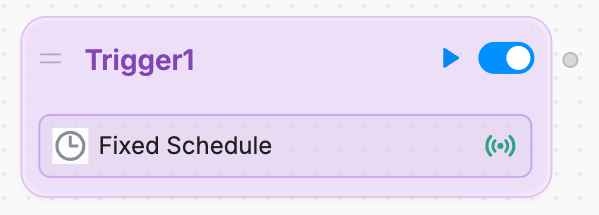
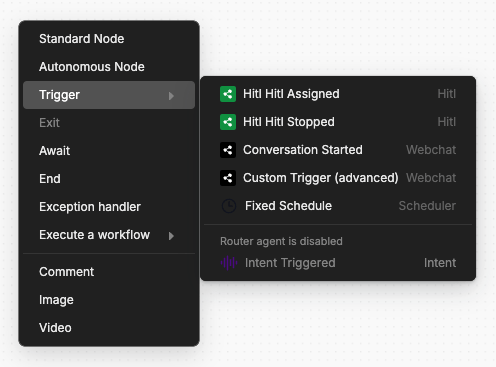 Select **Fixed Schedule** to add the Card:
 ## Schedule the Card
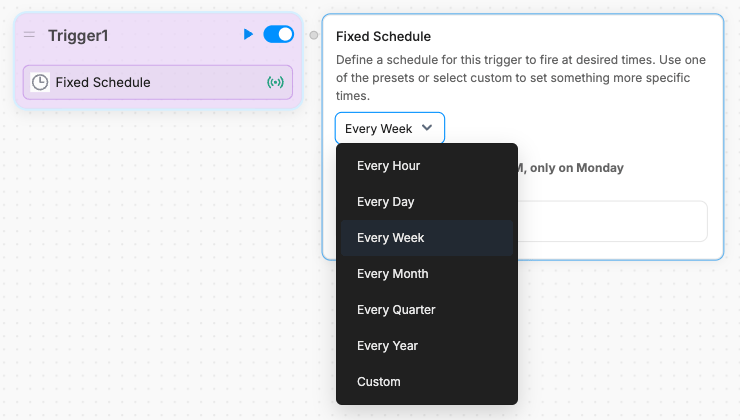
You can use the Card's settings to schedule when it executes:
## Schedule the Card
You can use the Card's settings to schedule when it executes:
 ## Set a Custom Schedule
You can use a cron expression to set a custom schedule for the Card.
To learn about cron expressions and test them out yourself, check out [crontab guru](https://crontab.guru).
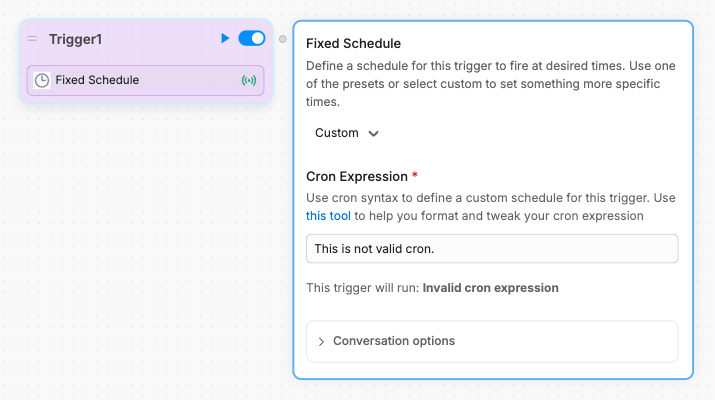
In the Card's scheduling options, select **Custom** to open the cron field:
## Set a Custom Schedule
You can use a cron expression to set a custom schedule for the Card.
To learn about cron expressions and test them out yourself, check out [crontab guru](https://crontab.guru).
In the Card's scheduling options, select **Custom** to open the cron field:
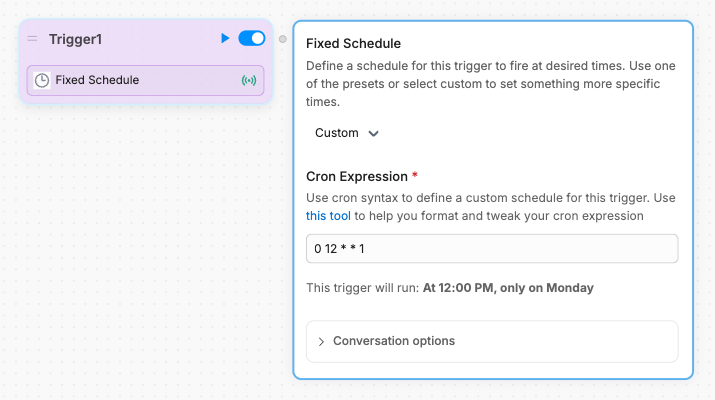 The Card will preview when the trigger is scheduled, or let you know if your cron expression is invalid: